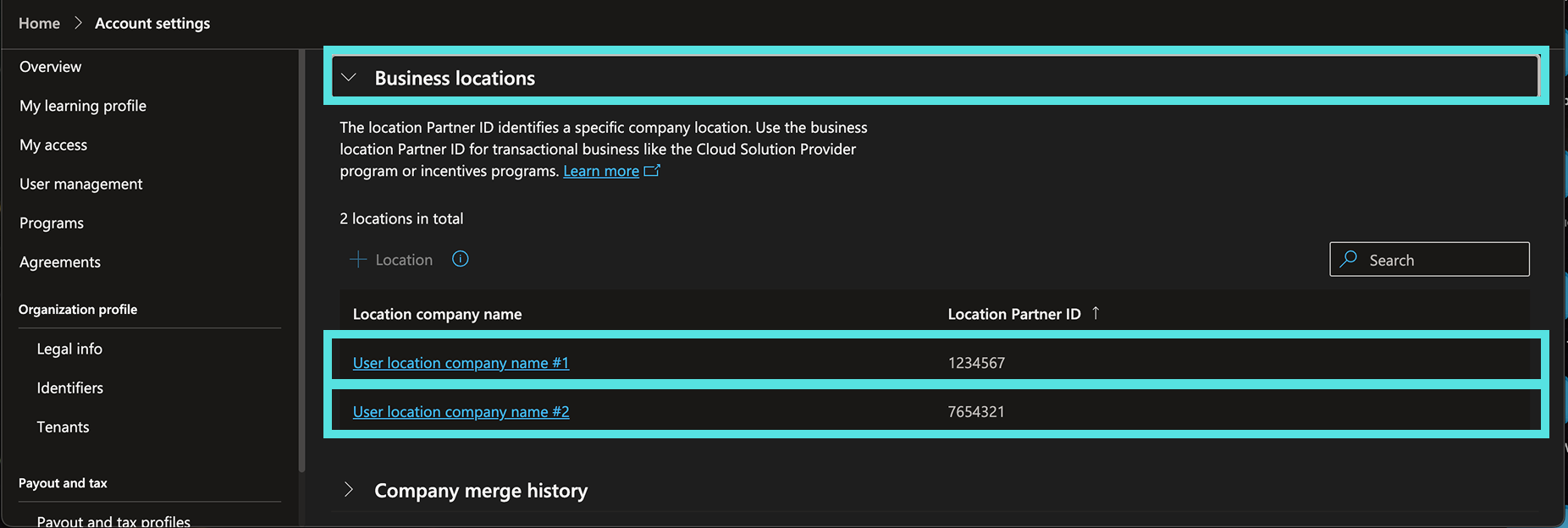
2
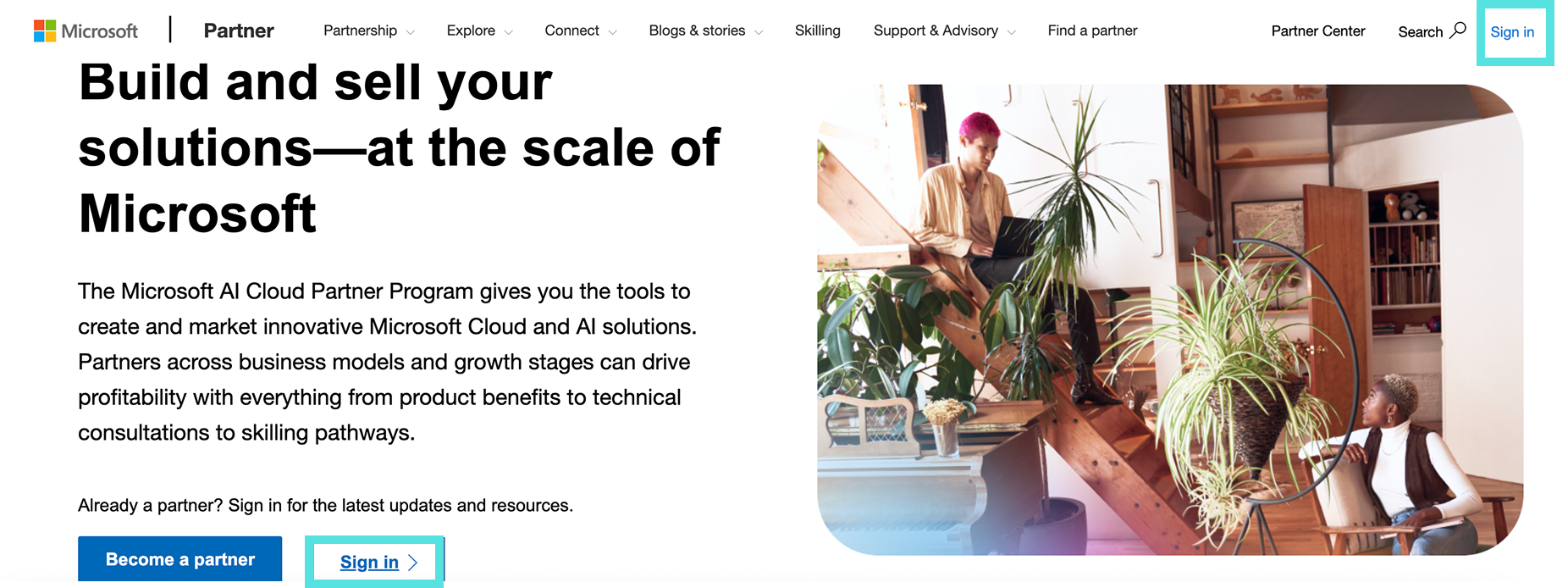
Ihre Organisations-ID finden Sie oben rechts. Dies ist NICHT Ihre Standort-ID.

3
Klicken Sie auf Ihre Organisations-ID und wählen Sie im Dropdown-Menü „Konto anzeigen" aus. Es erscheint ein Pop-up-Fenster, wie in Schritt 4 beschrieben.
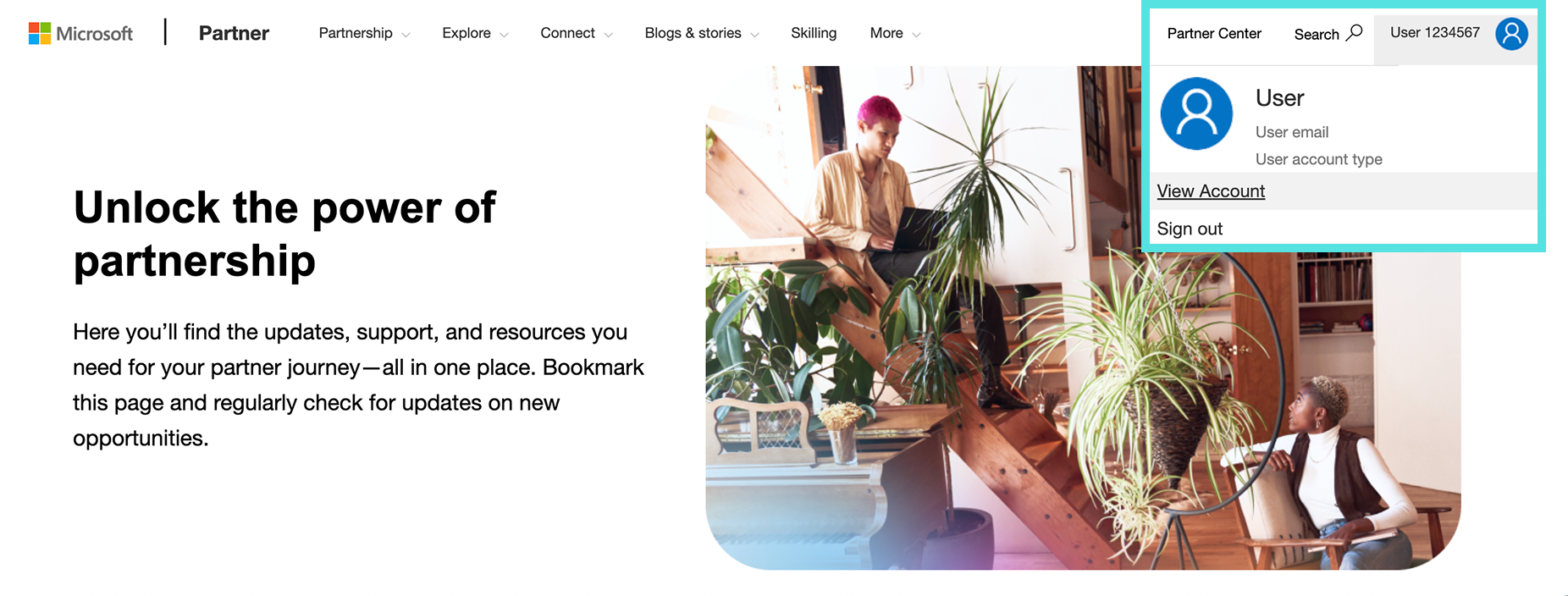
4
Klicken Sie auf „Partnerprofil".
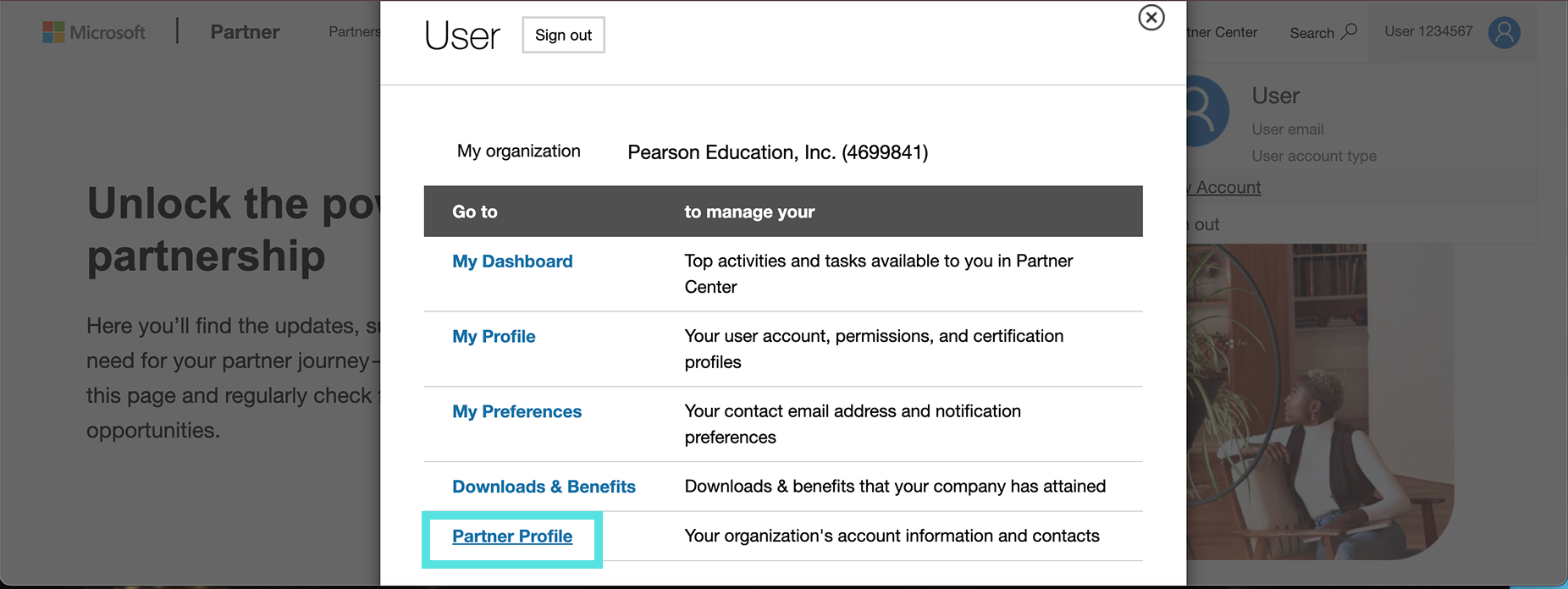
5
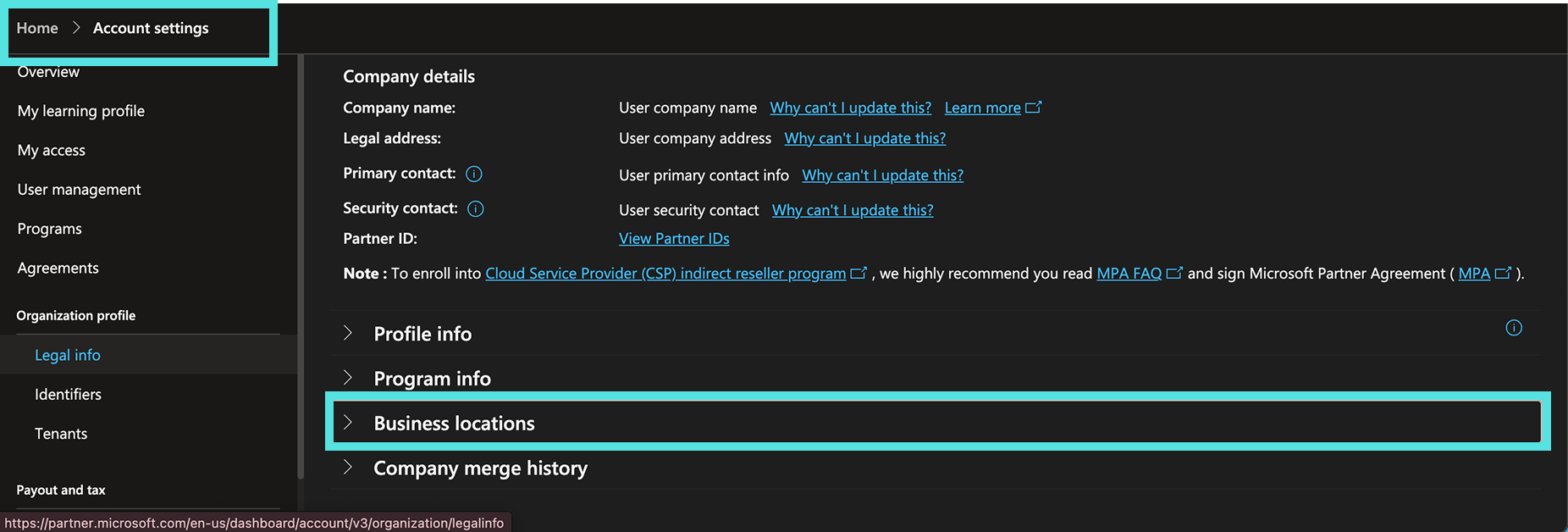
Sie gelangen zur Seite „Kontoeinstellungen" und klicken dort auf „Geschäftsstandorte".
6
Sie werden zu Ihren MPN-Standort-IDs weitergeleitet.